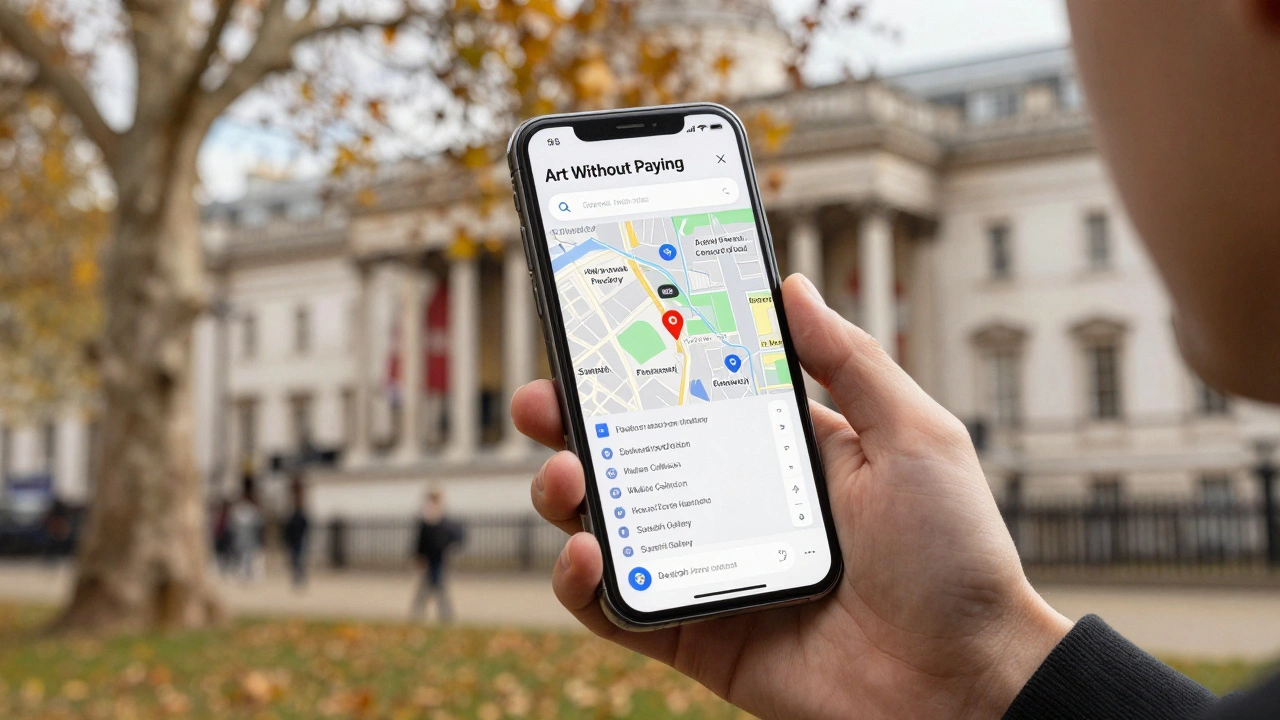
Planning a cultural trip to London doesn’t have to mean scrolling through dozens of websites, saving random links, or forgetting which gallery you wanted to visit next. Google Maps Lists is one of the most powerful-but often overlooked-tools for organizing your London culture experience. Whether you're into hidden indie galleries, historic theatres, or quiet bookshops with vintage finds, this tool turns your phone into a personalized cultural guidebook.
What Are Google Maps Lists?
Google Maps Lists let you create and save custom collections of places directly in the Google Maps app. Think of them like playlists for places. You can make a list for "London’s Best Independent Bookstores," another for "Free Museum Days," and a third for "Underground Jazz Spots." Each list shows you the exact location, opening hours, user reviews, photos, and even wait times-all in one place.
Unlike bookmarks or notes in your phone, these lists update in real time. If a museum closes for renovations, Google Maps will flag it. If a theatre adds a last-minute show, you’ll see it right in your list. And the best part? You can share your lists with friends, collaborate on them, or use them offline once downloaded.
Why Use Lists Instead of Just Searching?
Searching "museums in London" gives you a long list of popular spots-Tate Modern, the British Museum, the Victoria and Albert. But culture isn’t just about big names. It’s about the tiny print shop in Shoreditch that’s been running since 1987. The basement poetry slam in Camden. The free sculpture garden behind a church in Notting Hill.
Google Maps Lists let you build a personalized map of the culture that matters to you. You can sort by type, visit status, or even mood. One list might be "Quiet Afternoons," another "Must-See Before I Leave." This way, you’re not just ticking off tourist spots-you’re curating a real cultural journey.
How to Create Your First London Culture List
Open the Google Maps app on your phone (iOS or Android). Tap your profile picture in the top-right corner. Then tap "Your Lists." From there, tap the + button to create a new list.
Give it a clear name. Something like "London Art Walk 2026" works better than "Places I Like." Then start adding spots. Here’s how:
- Search for a place-like "Tate Britain" or "Royal Opera House."
- Tap the place’s card at the bottom of the screen.
- Tap "Save" and choose your list.
- Repeat for 10-15 places you’re interested in.
You can also add notes to each entry. Tap the three dots next to a saved place, then "Add note." Write something like "Free on Wednesdays" or "Best for photography." This turns your list into a smart guide, not just a map.

Top 5 London Culture Lists You Should Build
Here are five list ideas that real Londoners and long-term visitors use:
- Free Museum Days - The British Museum, National Gallery, Tate Britain, Science Museum, and the Museum of London all offer free general admission. Add them to a list so you never miss a day.
- Small Theatres & Fringe Shows - Skip West End tickets. Try the Gate Theatre in Hammersmith, the Arcola in Dalston, or the Bush Theatre in Shepherd’s Bush. These places often have £10-£15 tickets and bold, new work.
- Hidden Bookshops - Try London Review Bookshop in Covent Garden, Page One in Soho, or Books for Cooks in West Kensington. Add notes like "Best for first editions" or "Coffee on the second floor."
- Public Art & Sculpture Walks - London has over 700 public sculptures. Start with the ones in Hyde Park, the South Bank, or along the Thames Path. Use the list to plan a walking route.
- Live Music in Unusual Places - Jazz in a library (The Jazz Café in Camden), classical in a church (St Martin-in-the-Fields), or folk in a pub (The Hope & Anchor in Islington). These lists help you find authentic, local experiences.
Pro Tips for Using Lists Like a Local
- Sort by "Visited" - Google Maps lets you mark places as "Visited" with a tap. This helps you track what you’ve seen and avoid repeating spots.
- Download for offline use - Tap the three dots on your list, then "Download." This saves the map and details so you can use it even without Wi-Fi-perfect for tube rides or parks.
- Use categories - Name lists with clear intent: "Culture," "Quiet," "Family-Friendly." This helps you pick the right list fast when you’re on the go.
- Share with travel buddies - Tap "Share" on any list and send a link. Your friend can add their own spots too. Great for group trips.
- Check updates weekly - Culture spots change fast. A pop-up exhibition might end early. A theatre might cancel a show. Your list will update automatically, so you won’t show up to a closed venue.

Real Example: A 3-Day London Culture Itinerary Using Lists
Here’s how one visitor used Google Maps Lists to plan a weekend:
- Day 1 (Art & History): Started at the National Portrait Gallery (free), walked to the Wallace Collection (free, quiet, stunning interiors), then ended at the Saatchi Gallery (free, rotating contemporary shows). All added to a list called "Art Without Paying."
- Day 2 (Music & Books): Morning coffee at Books for Cooks, afternoon jazz at The Jazz Café, then a used book hunt at Charing Cross Road bookshops. Each added with notes like "Best vinyl selection" or "Bring cash."
- Day 3 (Outdoor Culture): Walked the South Bank from Tate Modern to the Royal Festival Hall, stopped at street performers, grabbed a sandwich at Borough Market, then ended at the露天 sculpture garden in St James’s Park. Added to "Outdoor London Culture."
She didn’t buy a single guidebook. Her phone had everything she needed-updated, organized, and ready to go.
What You Can’t Do With Google Maps Lists
It’s not perfect. You can’t book tickets directly from the list. You can’t see event schedules for every venue (though most do show upcoming shows). And if a place doesn’t have a Google Maps listing, you can’t add it-unless it’s a business with a Google Business Profile.
That’s why it’s best used alongside other tools. Check Time Out London for event calendars. Use Eventbrite for tickets. But for organizing where to go, when, and what to expect? Nothing beats Google Maps Lists.
Final Thought: Your Culture, Your Map
London’s culture isn’t in the brochures. It’s in the small galleries, the late-night readings, the free concerts in the park, the shop owner who remembers your name. Google Maps Lists puts you in control. You decide what matters. You build your own path. No algorithms. No ads. Just you, your interests, and a map that grows with you.
Start today. Open the app. Make one list. Add three places you’ve always wanted to see. Then go find them.
Can I use Google Maps Lists without an internet connection?
Yes. Once you’ve saved a list, tap the three dots next to it and select "Download." This saves the map, locations, and details so you can use it offline. It’s perfect for walking tours, tube rides, or areas with poor signal. Just remember to download before you leave Wi-Fi.
Are Google Maps Lists only for tourists?
No. Many Londoners use them to explore new neighborhoods, find hidden gems, or plan weekend outings. A local might make a list of "Best Sunday Cafés in South London" or "Free Events Near Me This Month." It’s a tool for anyone who wants to explore more deeply-not just visit.
Can I add places that aren’t on Google Maps?
Not directly. Google Maps Lists only lets you save places that already have a listing. If a spot doesn’t appear in search, it likely doesn’t have a Google Business Profile. But you can still add a note like "Hidden jazz bar behind the bakery on Elm Street" to remind yourself where to look. You can also suggest the place to Google Maps by tapping "Add a missing place."
How many lists can I create?
You can create up to 100 lists. Most people only need 5-10. Try grouping by theme: "Free Culture," "Quiet Spots," "Family-Friendly," "Date Night." This keeps things simple and easy to find.
Can I share my list with someone who doesn’t use Google Maps?
Yes. When you tap "Share," you can send a link via text, email, or messaging apps. Anyone with the link can view the list in their browser-even if they don’t have the Google Maps app. They can’t edit it, but they can see all the locations, photos, and notes.